
Getting Started
Loadouts, greetings, swipes, and branches.
A full roleplay engine in your browser. Characters, personas, lorebooks, presets and conversations live in a local database on your device. The server only relays model requests.
Open the chat from the top navigation. New conversations start on the chat home screen. Anything equipped there can be changed later per conversation.
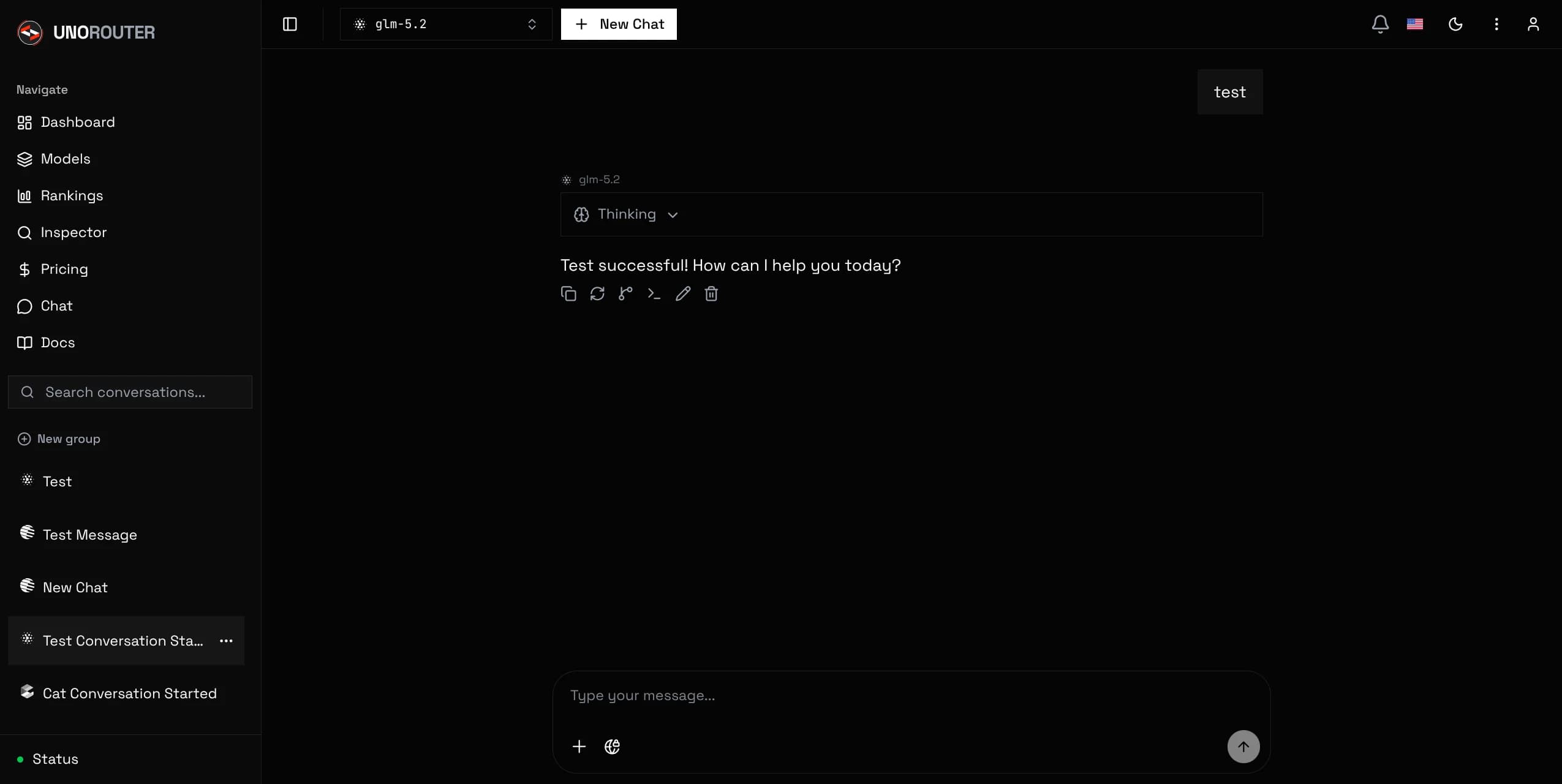
The loadout is the preset, persona, characters, and lorebooks that auto-equip on every new chat. Set it once on the chat home screen.
Per-conversation overrides live in the settings drawer inside the chat: swap the persona, add lorebooks, change sampling, or toggle features without touching the loadout.
The first message opens the chat. Add alternate greetings below it in the character editor. Imported cards bring theirs. With more than one, a picker appears before your first send.
Greetings are macro-expanded once at insertion time, so UnoRouter fills in names and random values. Each greeting is a root branch. Swipe the first message to switch.
Every reply can be regenerated. Regenerations become siblings you swipe between. Nothing is overwritten.
Conversations are trees, not lists. Editing or regenerating in the middle creates a new branch, and the previous line stays reachable.
A failed send stays in the timeline for manual retry. Nothing is silently resent. Offline sends are marked as queued.
Auto-continue requests a continuation when a reply stops mid-sentence, up to three times. Toggle it per conversation in the settings drawer.
Your usage logs show small calls to models you never picked. This is expected. Short background jobs race a fixed pool of free models:
gpt-oss-120b:free
gpt-oss-20b:free
llama-3.3-70b:free
Three jobs use them: naming a new conversation (once), deciding whether a question needs a web search, and folding older turns into the rolling summary.
They never touch your picked model and never bill your balance. All three run at once, so a slow free model cannot delay your reply.
Import a character card, create a persona, then read Presets to see how the prompt is assembled. Lorebooks and Macros cover the deeper systems.
Ctrl K opens search across all docs pages.