
Backup & Restore
One file holds everything, images included.
In chat, open the actions menu (top right), then Tools, then Database.
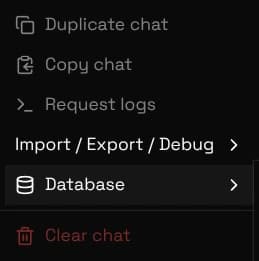
Leave the checkboxes as they are and pick Download local SQLite file. Save it somewhere durable, not just the device it came from. Custom provider API keys are inside, so treat the file as private.
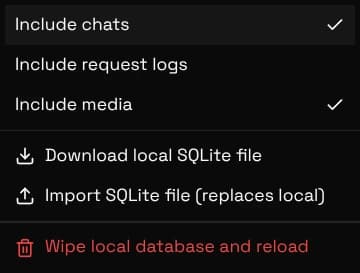
Import SQLite file replaces everything in this browser with the file's contents. The swap only happens once the replacement is built and verified, so a failed import leaves your data alone.
Backups from another account or an older version restore fine. Use this to move between devices, browsers, or guest and signed-in use.
Send to another device does the same job as downloading and importing the file, without you handling the file at all. It is in the same Database menu, under Import SQLite file.
- On the device that has your chats, open Tools, then Database, then Send to another device. Leave Include media on unless the export is large.
- Wait for the code and the QR square to appear. The export is built, encrypted and uploaded in that step, so a big library takes a few seconds.
- On the other device, scan the QR with its camera, or open the same Database menu there and choose Receive from another device and type the code.
- Confirm the overwrite warning. The chats land, the page reloads, and the copy on the host is deleted.
Both devices need to be online at some point, but not at the same time. The code keeps working until the copy expires or someone receives it, so you can send from a laptop now and pick it up on a phone later.
| Detail | Value |
|---|---|
| Size limit | 100 MB per transfer. Turn off Include media to get under it; chats, characters and settings stay. |
| How long the code lasts | One hour to three days depending on which host took the upload, and the copy is deleted the moment the other device receives it. |
| Where the file sits | A free temporary file host, whichever of three answers first. It only ever holds the encrypted blob; the key never leaves your browser. |
| What UnoRouter stores | Nothing. The upload goes from your browser straight to the host, and the download comes straight back. Your chats still never touch our servers. |
Images dominate the size, and browsers get unreliable past roughly 500 MB.
If the download fails, back up again with Include media off. That keeps every chat, character and setting, and stays small. Save images separately from the gallery.
| What you see | What to do |
|---|---|
| The download fails or the tab crashes | Too big. Back up again with Include media off. |
| The app looks empty after a crash or update | Do not create anything new. Restore your latest backup. |
| The summary mentions skipped rows | Normal. Existing rows are not duplicated. |
| On iPhone the file lands somewhere odd | It goes to Files. Pick it from there, and move it to a cloud folder. |
| The transfer code is rejected | Check for a missing character; the code is case sensitive. If it was already received once, or the copy expired, send the database again for a fresh code. |
| Send says the export is too large | Turn off Include media in the Database menu and send again, then move the images with a downloaded file if you need them. |